
Pickscan supports the scanning of carton (or outer) barcodes to enable you to scan multiple quantities with one barcode. To add a carton barcode you need to set the carton barcode value against the product within Linnworks.
Navigate to 'My Inventory'
Click the SKU of the item that you would like to add an extended property for and you will see the Product Details window.
Tap on the Extended Properties tab
From here you can add new extended properties by clicking the 'Add New' button. The carton barcodes must be created as pairs in the following format
supplier_barcode_x
supplier_carton_size_x
Where x is a numeric value identifying the carton barcode pair, for example if you had a carton with the barcode value 123456 which contained 12 items you would add
supplier_barcode_1: 123456
supplier_carton_size_1: 12
Then, if this product also came in boxes of 48 that had a barcode value of 7890 you could add
supplier_barcode_1: 7890
supplier_carton_size_1: 48
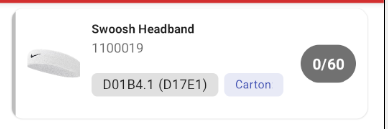
When loading an order with a carton enabled item in the Pickscan mobile app you will see the 'Carton' tag to indicate that carton scans are supported.