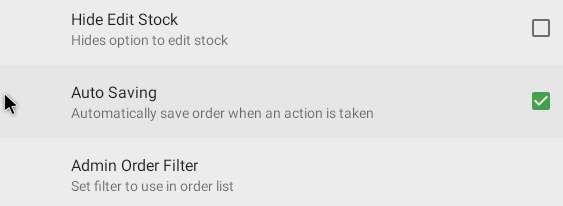

If you are using your devices in a multi device, multi user environment you may wish to enable 'auto saving' on your devices so partially picked orders can be scanned and display their current pick state
You will first need to find your device id, which you can find on the bottom of Scan home. We have a guide here
Once you have your device code, you'll need to enter settings within the App by tapping on the icon in the top left

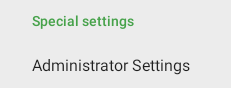
Scroll down and tap 'Administrator Settings'
Enter your device code
Under the 'Order Scan' settings you will see 'Auto Saving' which can then be enabled