

Batch Picking is an advanced picking method designed for high-volume warehouse operations where efficiency and throughput are critical. Instead of picking one order at a time, this method groups multiple orders together into batches, allowing pickers to collect items for all orders in a batch during a single pass through the warehouse.
How Batch Picking Works
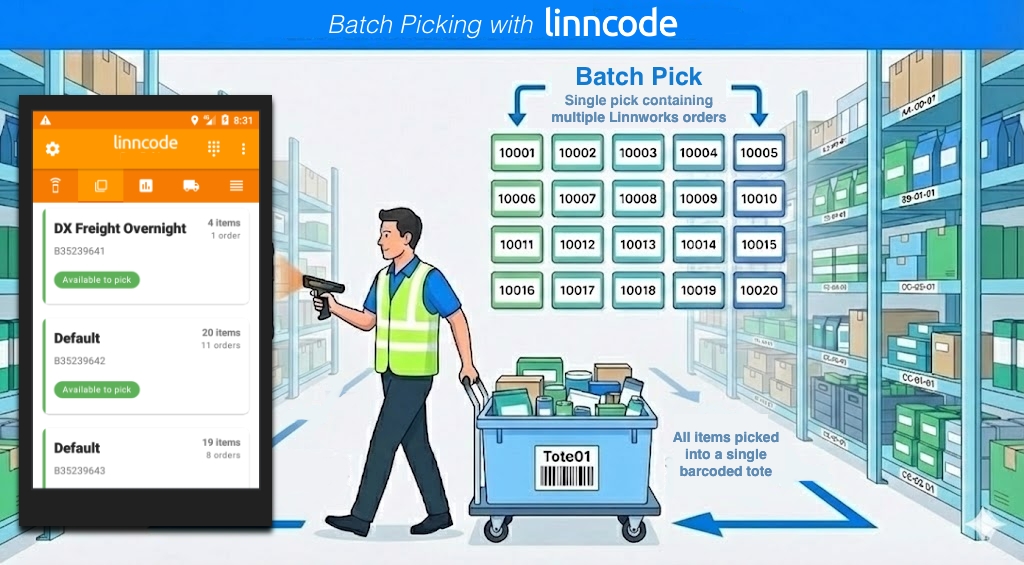
Batch picking operates on a simple but powerful principle: by grouping multiple orders together, pickers can collect all required items in one comprehensive pass through the warehouse, significantly reducing walking time and increasing overall picking efficiency.
The Workflow
1. Batch Generation: The system automatically groups open orders into batches based on your configured algorithm (e.g., by shipping service or courier).
2. Batch Selection: Pickers view available batches on their mobile devices and select one to work on. When a batch is selected, it's immediately locked to prevent other pickers from accessing it, and a tote is automatically assigned for tracking.
3. Picking Phase: The picker proceeds through the warehouse, scanning all items required for all orders in the batch during a single pass. Items are collected together without being sorted by order at this stage.
4. Packing Phase: Once all items have been picked, the batch moves to the packing station. Here, items are sorted by order using pack locations assigned to each order. Each order is packed separately.
5. Completion: Once all orders in a batch have been packed, the batch is marked as complete.
Key Benefits
Reduced Walking Time: Pickers make one pass through the warehouse instead of multiple trips for individual orders
Higher Throughput: More orders can be processed in less time
Better Resource Utilisation: Ideal for warehouses with dedicated packing stations
Scalability: Particularly effective for high-volume operations
Trade-offs
Requires Packing Stage: Unlike single order picking, batch picking requires a dedicated packing station to sort items by order
More Complex Workflow: Pickers and packers need to understand the batch and packing process
Not Suitable for All Operations: Smaller warehouses or operations without packing stations may find single order picking more appropriate
Setting Up Batch Picking
Navigate to Settings in the Pickscan console, the settings icon can be found in the top right

Enable the Use Batch Picking toggle

Scroll down to the bottom of the settings page and tap 'Save Settings'

Configuration Options
Once batch picking is enabled, you'll see several configuration options:
Automated Generation Interval

This setting controls how often the system automatically generates new batches from open orders. The optimal interval for your warehouse will depend on your processing rate. The wider the interval between batch picks, the better the system is able to optimise the pick batches as more data is available to optimise for.
Options:
No automated generation: Batches must be generated manually via Pickscan embedded application within Linnworks.net
Every 20 minutes: Suitable for high-volume operations with constant order flow
Every 30 minutes: For higher than average volumes
Every 45 minutes: Our default and a balanced option for most operations
Every hour: For lower volume operations
Every 90 minutes: For operations with slower order flow
Every 2 hours: For operations with infrequent order arrivals
Recommendation: Start with 45 minutes and adjust based on your order volume and picking capacity.
Maximum Items per Batch

This setting limits the total number of items that can be included in a single batch.
Default: 20 items
Considerations:
Smaller batches (10-15 items): Easier to manage, faster to pick, but more batches needed
Medium batches (20-30 items): Good balance for most operations
Larger batches (30-50 items): Maximum efficiency but requires experienced pickers and larger totes
Recommendation: Start with 20 items and adjust based on your warehouse layout, tote size, and picker experience.
Batch Algorithm
This setting determines how orders are grouped together into batches.
Available Options:
- Group by Postage Service: Orders with the same shipping/postage service are grouped together (e.g., all "Royal Mail 1st Class" orders in one batch)
- Group by Courier: Orders using the same courier service are grouped together (e.g., all "DPD" orders in one batch)
Which to Choose:
- Postage Service: Use when you want to group by shipping speed or service type
- Courier: Use when you want to group by delivery provider
Recommendation: Start with "Group by Postage Service" as it's the most commonly used option.
Tote Setup
The items in a batch pick must be packed into a 'tote' which is a barcoded box/trolley/tray that allows a packer to identify the batch when it arrives at the packing station. The tote barcodes can be any values you choose, we advise using a fixed format i.e Tote01, Tote02 etc.
You can download an example tote label sheet here to get started
totesheet.pdfThe Batch Generation Process
Automatic Generation
When automated generation is enabled, the system will automatically create batches from open orders at the specified interval. You'll see a countdown timer on the picking page showing when the next automatic generation will occur. The orders selected for batching are all unprocessed orders in Paid or Resend status within Linnworks.
How it works:
At the scheduled interval, the system scans all open orders
Orders are grouped according to your selected algorithm
Batches are created up to the maximum items per batch limit
New batches pushed to Pickscan mobile app instances.
Manual Generation
You can manually trigger batch generation at any time using the Regenerate Batch Picks button on the picking page.
When to use manual generation:
- After making configuration changes
- When you need immediate batches for urgent orders
- To refresh batches after processing a large number of orders
- When automated generation is disabled
How to use:
1. Click the Regenerate Batch Picks button
2. A status message will appear showing "Generating batch picks..."
3. Once complete, new batches will appear in the batch table
4. The status message will update to show completion
Understanding Batch Statuses
Batches can have one of three statuses:
Available to Pick
Batches with this status are ready to be picked. They appear on mobile devices and can be selected by any available picker.
What it means:
- Batch has been created and is ready for picking
- Contains one or more orders grouped together
- No picker is currently working on this batch
- Items are ready to be scanned on mobile devices
Picking
Batches with this status are currently being picked by a picker.
What it means:
- A picker has selected this batch on their mobile device
- The batch is locked to prevent other pickers from accessing it
- A tote has been assigned for tracking
- Picking is in progress
Information shown:
- Tote number assigned to the batch
- Picker name
- Time picking started
Picked
Batches with this status have been fully picked and all orders have been packed.
What it means:
- All items in the batch have been picked
- All orders in the batch have been packed
- The batch is complete and no longer available for picking
Information shown:
- Date and time batch was completed
- Name of the picker who completed it
The Picking Workflow
For Pickers (Mobile App)
1. View Available Batches: Open the picking screen on your mobile device to see all batches with "Available to Pick" status
2. Select a Batch: Tap on an available batch to select it
- The batch will immediately lock to prevent other pickers from accessing it
- A tote number will be automatically assigned
- The batch status will change to "Picking"
3. Collect Items: Proceed through the warehouse, scanning all items required for all orders in the batch
- Items are displayed together, not sorted by order
- Scan each item's barcode as you collect it
- The system validates each scan and provides feedback
4. Complete Picking: Once all items have been scanned and collected:
- The batch moves to the packing station
- Items are ready to be sorted by order during packing
For Packers (Packing Station)
1. Receive Batch: When a batch is complete, it's ready for packing
2. Sort by Order: Use the pack locations assigned to each order to sort items
- Each order in the batch has a unique pack location
- Items are sorted into separate areas/totes for each order
3. Pack Orders: Pack each order separately using the sorted items
4. Complete Batch: Once all orders in the batch have been packed, the batch is marked as complete
Troubleshooting
No Batches Available
Possible causes:
- No open orders available to create batches from
- Maximum items per batch setting is too high for current order volume
- Batch algorithm is too restrictive (e.g., only one order matches the criteria)
Solutions:
- Check that you have open orders in Linnworks
- Try reducing the maximum items per batch setting
- Consider changing the batch algorithm
- Manually trigger batch generation
Batches Not Generating Automatically
Possible causes:
- Automated generation is disabled
- Interval timer hasn't reached zero yet
- No open orders available
Solutions:
- Check Settings to ensure automated generation is enabled
- Check the countdown timer on the picking page
- Verify you have open orders available
- Try manual generation to test
Too Many Small Batches
Possible causes:
- Maximum items per batch is set too low
- Batch algorithm is creating many small groups
Solutions:
- Increase the maximum items per batch setting
- Review your batch algorithm choice
- Consider if your order characteristics naturally create small batches
Too Few Batches or Batches Too Large
Possible causes:
- Maximum items per batch is set too high
- Not enough orders available
Solutions:
- Reduce the maximum items per batch setting
- Check order volume and availability
- Adjust automated generation interval if needed
### Items Missing During Packing
Possible causes:
- Item wasn't scanned during picking
- Item was misplaced
- Batch was completed before all items were picked
Solutions:
- Verify all items were scanned during picking phase
- Check that the batch wasn't marked complete prematurely
- Review picking logs to identify missing items