

When you run Pickscan for the first time, you'll see the setup wizard. It guides you through initial setup before using Pickscan in your warehouse.
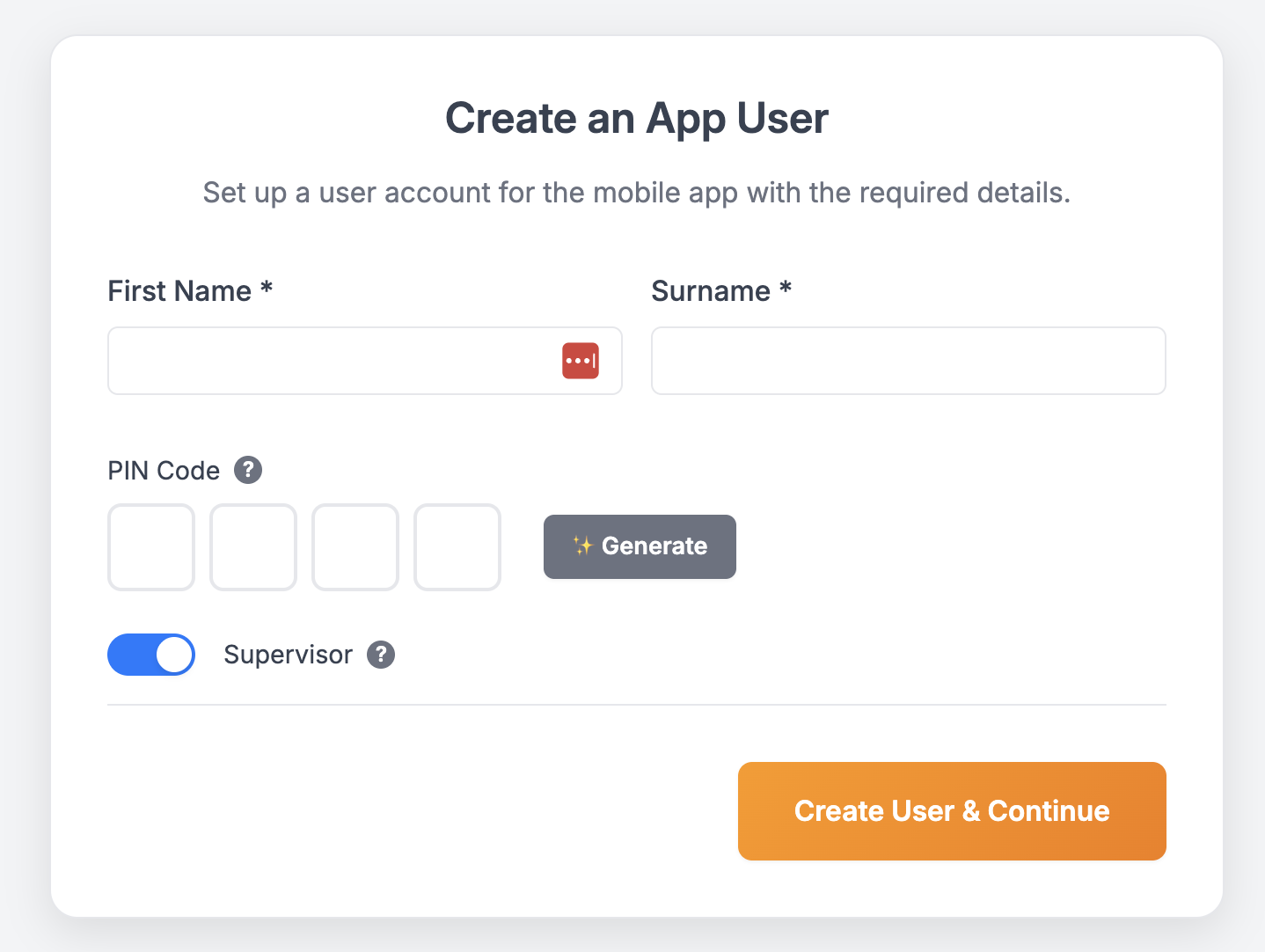
Step 1: Creating your first App User
The Pickscan for Android app is used for warehouse picking and stock management. Before connecting devices, you will need to create at least one application user. All Pickscan mobile activity is tracked back to the user operating the device for audit trail purposes.
Complete the following fields to setup your first user
First Name (required): Enter the user's first name (2–50 characters, letters and spaces only).
Surname (required): Enter the user's surname (2–50 characters, letters and spaces only).
PIN Code (required): Enter a 4-digit PIN the user will enter on the mobile app to log in. You can enter it manually or click the "Generate" button to create one automatically. The PIN is used to track user activity for audit purposes.
Supervisor (optional): Toggle this on to grant supervisor permissions. Supervisor users have elevated permissions and can access additional features and settings in the Pickscan mobile app.
Be sure to take note of the pin you created for the user as you will need it later
Every Pickscan instance is protected by a user pin.
Once all required fields are completed, click "Create User & Continue" to proceed to the next step of the setup wizard.
Step 2: Download the Mobile App
Once you have created an app user you can, download the Pickscan mobile app on your Android devices.

How to Install:
Open the Google Play Store on your Android device.
Search for "Pickscan" in the search bar.
Select the Pickscan app from the search results.
Tap "Install" to download and install the app on your device.
Step 3: Connecting Your Device
When you reach Step 3, a 6-digit device code is automatically generated and displayed on the dashboard.
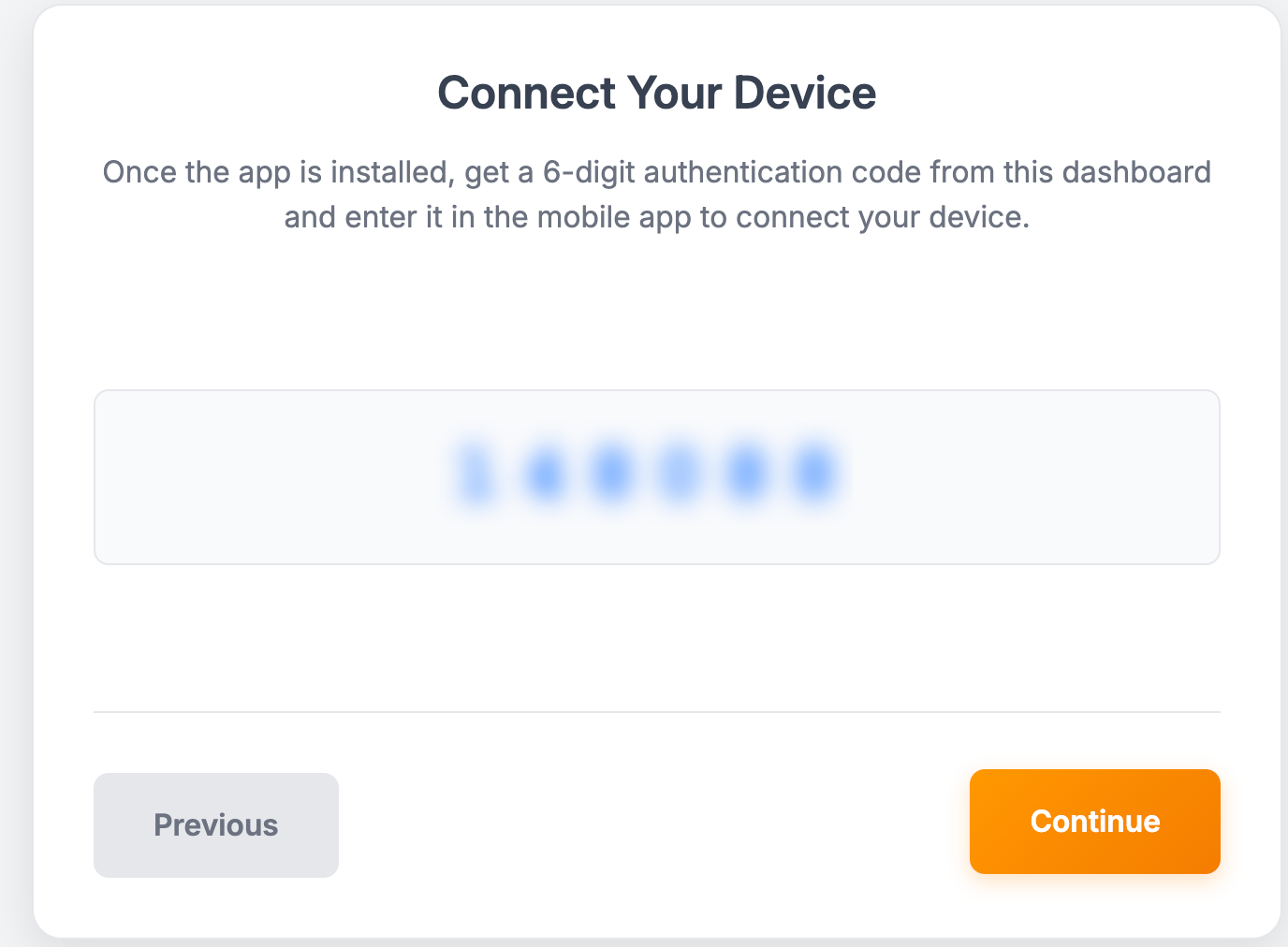
This code is used to authenticate and connect your new Pickscan mobile app installation. The code is unique to your installation and should be entered exactly as displayed.
Once you've entered the code in the mobile app and your device is connected, click "Continue" to proceed to printer setup.
Step 4: Selecting Printers and Templates
Pickscan integrates with your Linnworks Virtual Printer to allow you to initiate prints at the packing stage via the Pickscan mobile app.
To configure your default printer and invoice template select the values from the drop down and tap 'Continue' to proceed to the next step.
Step 5: Confirmation
The final step will confirm the setup of your first app user and your device initialisation status. You are now ready to use Pickscan in your warehouse.