

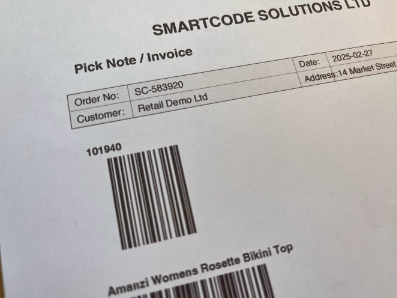
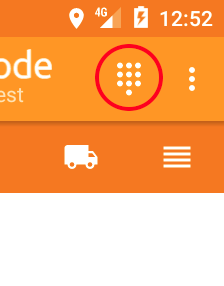
Scanning an order with Pickscan begins with inputting the order number, via barcode scan or manual input using the keypad icon within Pickscan
Scanning via barcode on pick note
Using the keypad icon to manually input the order number
If your order no is valid the contents on the order will be displayed on screen ready for you to scan
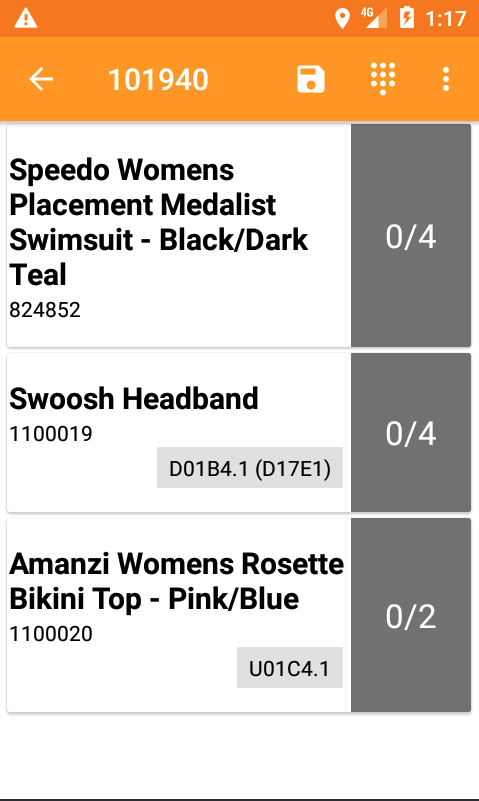
You can then proceed to scan the items as you pick. An item line that is in process will turn blue

A complete order line will turn green once all items are scanned